
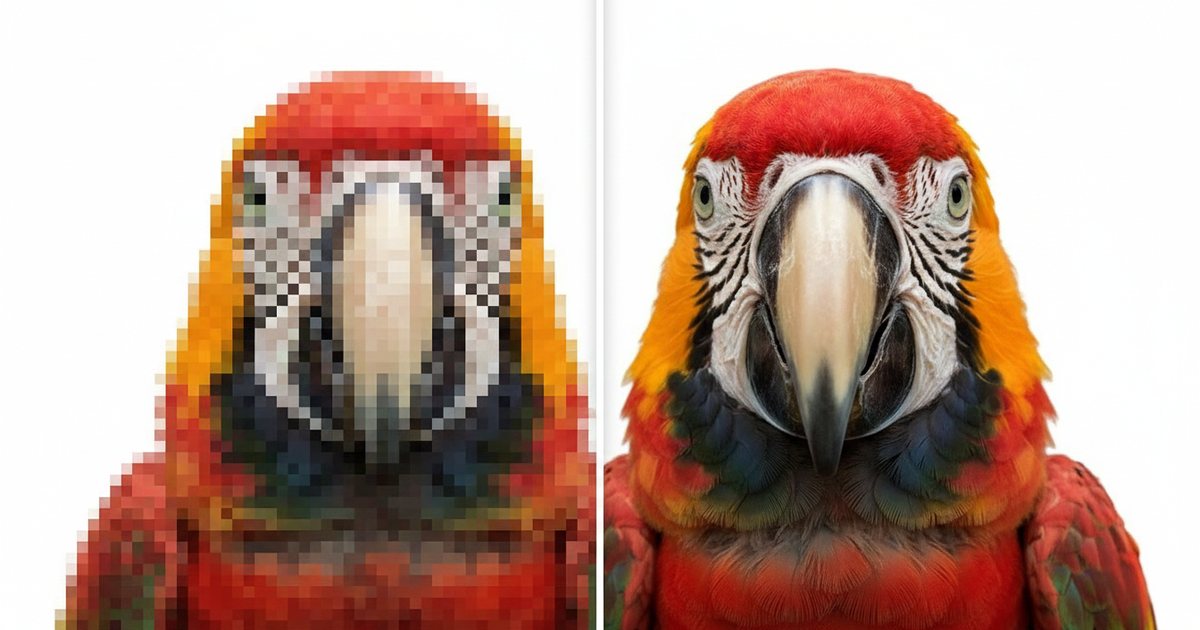
What Lossless Image Compression Actually Means
You've probably run into the word in a settings panel somewhere: a WordPress plugin asking whether you want "lossy" or "lossless" compression, or an export dialog with a toggle you weren't quite sure how to answer. Lossless image compression is the option that shrinks a file without throwing away any of the original picture information. Once you understand what that actually means, the rest of the compression conversation, formats, quality sliders, file sizes, gets a lot less confusing.
This article is the missing vocabulary lesson. Not a format recommendation, not a step-by-step workflow, just a plain explanation of what these two words mean, which formats support which, and two mix-ups that trip up even careful readers: that PNG is unconditionally lossless, and that "80 percent quality" in a JPEG export means "80 percent of the original file."
What Is Image Compression, Anyway?
If you've been searching for the image compression meaning behind all this, here it is in one paragraph. A digital image is really just a long list of numbers: one set of red, green and blue values for every pixel on the screen. A lot of that list repeats itself. A clear blue sky is mostly the same shade of blue, pixel after pixel, for a huge stretch of the picture.
Image compression means finding ways to represent that same picture using fewer bytes, either by squeezing out the repetition or by trimming detail your eyes are unlikely to miss. Smaller file, same image (or close enough), that's the whole idea.
Lossless compression, explained
Lossless compression finds the repeated patterns in a file and stores them more efficiently, without ever throwing anything away. Decompress the file later and you get back the exact same pixels you started with, byte for byte.
Think of it like writing in shorthand. Fold a wordy sentence down into abbreviations you know how to unfold, and you can always get back to the exact original wording later. Nothing in the sentence was lost, you just wrote it down more efficiently. (It's the same principle behind the gzip compression a web server applies to HTML and CSS.)
Lossless image compression works the same way: it spots the repeating patterns in the pixel data and rewrites them in a shorter form that a decoder can unfold back into the identical original image. Where the analogy breaks down a little: your shorthand depends on your own memory and could drift over the years, while a lossless decoder is mathematically guaranteed to reconstruct the same file every single time. That reliability is the entire point of choosing lossless in the first place.
Lossy compression, explained
Lossy image compression takes a different approach. Instead of just packing patterns more efficiently, it permanently discards some of the image detail, specifically the detail human eyes are least likely to notice, like tiny color shifts in an area that already has a lot of visual noise. Once that detail is gone, decompressing the file will not bring it back.
A closer analogy here is summarizing a paragraph. A good summary is shorter and still useful, but you can't reconstruct the exact original wording from it; the specific phrasing is gone even though the meaning survives. Lossy compression behaves the same way.
JPEG, for example, uses a mathematical technique to identify and discard the visual information least likely to matter, then compresses what's left, according to MDN Web Docs' glossary entry on lossy compression. The result is usually a dramatically smaller file, which is exactly why lossy compression is the default for photographs on the web.
Which formats are lossless?
Here's the part that trips a lot of people up: "lossless" and "lossy" describe compression methods, not formats on their own. Some formats only support one method. Others let you choose. If you're specifically after lossless compression image formats, here's a quick reference:
| Format | Compression | Worth knowing |
|---|---|---|
| PNG | Lossless, by specification | Real-world tools can still discard color data before the lossless step runs (see below) |
| GIF | Lossless (LZW) | Limited to a 256-color palette, so color depth drops even though the compression step keeps every remaining pixel exact |
| BMP | Typically uncompressed or lossless | Rarely used on the web, files run large |
| TIFF | Commonly lossless | Can also store lossy JPEG data internally, so a .tiff isn't an automatic guarantee |
| WebP | Both modes available | Lossless mode uses different internals than its lossy (VP8-based) mode |
| AVIF | Both modes available | Same idea: lossless is a mode, not a default |
| JPEG XL | Both modes | Newer format, not yet widely supported in browsers |
| JPEG | Lossy only | No lossless mode in general web use |
Notice that lossless isn't just "the old formats." WebP and AVIF are hybrids: each one can run in lossless or lossy mode depending on what you, or your export tool, choose. Seeing "WebP" on a file doesn't tell you which mode produced it, any more than seeing ".png" does. AVIF is the newest of the three and has its own quirks worth knowing before you switch, our guide to what an AVIF file actually is covers browser support and when the switch is worth making. And if you're already serving WebP or AVIF from an Apache-hosted site, htaccess.tools can help you write the rewrite rules that serve the right format automatically based on what the visitor's browser supports.
Is PNG always lossless?
Short answer: the PNG format's compression step is always lossless. That's not marketing language, it's specification. The W3C's official PNG specification states plainly that PNG provides "lossless, portable, well-compressed storage of static and animated raster images," using a general-purpose, reversible compression method called DEFLATE, per the W3C PNG Specification. Nothing in the format itself is designed to throw data away.
Here's the nuance that catches careful readers, though. A .png file you download from a compression tool can absolutely represent a lossy result, even though the PNG format never technically lost anything. Tools like pngquant, the engine behind a lot of popular PNG compressors, work by reducing a full-color image, millions of possible colors, down to a palette of 256 or fewer, before the lossless PNG encoder ever touches the file, per pngquant's own documentation.
That palette reduction is a real, irreversible loss of color information. The pixels you get back are not the pixels you started with. The lossless compression step runs afterward and faithfully preserves whatever is left, which is technically true and a little beside the point.
For a deeper look at how palette reduction and related preprocessing tricks work under the hood, a PNG optimization tool author's write-up at pngmini.com is worth reading.
So if someone told you "PNG equals lossless, full stop," that's true of the specification and not always true of the file sitting on your hard drive. The honest version: PNG's compression step is lossless. What you feed into that step might not be, if a tool quietly reduced the color palette first. If a PNG shrank by 60 to 70 percent after running through an online compressor, palette reduction is almost always why, not the lossless step suddenly working much harder.
What's the actual difference in practice?
Strip away the algorithm names and the practical difference comes down to what you plan to do with the file afterward. Lossless makes sense when you need to re-edit the image later or when exact pixels matter: logos, screenshots with readable text, line art, diagrams, anything where a slightly blurred edge or a shifted color would genuinely bother someone.
Lossy makes sense for photographs and anything where file size on a web page matters more than pixel-perfect fidelity, which, honestly, describes most images on most websites. A blog's hero photo doesn't need every original pixel preserved. A visitor on a slow connection needs the page to load.
How much quality do you lose at 80 percent JPEG?
"Quality 80" is one of the most misread numbers in web publishing. It sounds like it means "80 percent of the original data," but that's not what it measures. JPEG quality settings control how aggressively the compression discards detail, on a scale each piece of software defines for itself: Photoshop uses a 0-12 scale, many web tools use 0-100, and none of these scales are standardized against each other. An 80 in one tool isn't necessarily an 80 in another.
So what does that actually cost you in file size and visible quality? One documented comparison from Sirv, an image CDN, tested a single sample image at several quality levels: 30.8 KB at 90 percent, 21.7 KB at 80 percent (roughly 30 percent smaller than the 90 percent version), and 14.6 KB at 72 percent, per Sirv's JPEG quality comparison. Visible artifacts, blurring, blocky patches around sharp edges, mostly stayed hidden down to around 75 percent on that particular test image, with problems becoming more obvious below that.
Worth flagging: that test used a high-contrast logo, which tends to show compression artifacts sooner than a soft, detailed photograph would. A busy beach photo and a clean line-art graphic won't behave identically at the same quality number.
That tracks with what a lot of photographers and web developers report from experience, too: the first quality drop from 100 costs almost no visible quality while saving real space, and 80 is roughly where many professionals settle when exporting images for the web. The honest, sourced answer is this: at 80 percent JPEG quality, you'll typically lose a meaningful chunk of file size, commonly 20 to 30 percent smaller than a 90 percent export, with artifacts that are generally hard to spot at normal viewing size unless your image has sharp contrast or fine text. You are not losing "20 percent of your image." You're losing some fine visual detail your eyes were unlikely to register anyway, in exchange for a real, measurable drop in file size.
A quick decision cue
If you just need a rule of thumb: choose lossless when you'll re-edit the file later or need exact pixels, logos, screenshots with text, diagrams. Choose lossy, at a moderate to high quality setting, for photographs and most other web images, which covers the majority of what ends up on a typical site.
This isn't a full decision framework, just a starting point. For the complete rundown on choosing between WebP and JPEG for a specific project, see our WebP vs JPEG guide. Once you've picked a method, our guide to reducing image file size walks through the actual resize-and-compress workflow, step by step.
Check what actually shipped
Here's a step worth adding to your workflow regardless of which method you pick: after you compress an image, check what format and size actually made it into the file, not just what your export dialog claimed. Compression tools occasionally convert formats without saying so, and a plugin can re-save a PNG through palette reduction without flagging it anywhere in the interface.
imagecheck.tools reads each image's real format directly from its file bytes rather than trusting the file extension, and flags files that are unusually large for their type. Paste a URL in and it tells you what actually shipped, not just what you assumed happened during export.
Frequently Asked Questions
What is the difference between lossless and lossy compression?
Lossless compression shrinks a file by repackaging repeated patterns more efficiently, and decompressing it returns the exact original pixel data with nothing missing. Lossy compression shrinks a file by permanently discarding some visual detail, usually detail the human eye is unlikely to notice, and that detail cannot be recovered once it's gone. Lossless is the safer choice when you need exact pixels; lossy generally achieves much smaller files, which is why it's the default for most photographs on the web.
Which formats are lossless?
PNG is lossless by specification, and GIF's LZW compression step is technically lossless too, though GIF's 256-color palette limit reduces color depth on its own. BMP files are typically uncompressed or losslessly compressed, and TIFF commonly uses lossless compression, though it can also store lossy JPEG data internally. WebP, AVIF and the newer JPEG XL format are hybrids: each one supports a lossless mode as well as a lossy mode, so the format name alone doesn't tell you which one was used. JPEG is the outlier, with no lossless mode in general use, it's lossy by design.
Is PNG always lossless?
The PNG format's compression step is always lossless, per the W3C's own PNG specification. In practice, though, plenty of .png files aren't lossless representations of their source image, because tools like pngquant reduce a full-color image down to a limited color palette before the lossless PNG encoder ever runs. That palette reduction permanently discards color information, so the format's compression stays lossless while the file it produces can still represent a real, visible loss compared to the original.
How much quality do I lose at 80 percent JPEG?
In one documented comparison, an image exported at 80 percent JPEG quality was roughly 30 percent smaller than the same image at 90 percent, with visible artifacts generally staying hidden at normal viewing size until quality dropped closer to 75 percent or below. High-contrast images like logos and text tend to show artifacts sooner than soft photographic detail. Because JPEG quality scales aren't standardized between different software, "80" in one tool isn't guaranteed to match "80" in another, so treat it as a strong compression setting rather than a literal measurement of how much of the original data survived.